
Olivia leads R&D at the fictional software company Northwind R&D. Her team has started work on an AI document classifier, but the administration lives in several places: the WBSO project description is in a document, pull requests are in GitHub, and registered time is in TimeChimp.
This walkthrough follows Olivia as she turns those existing workflows into a living WBSO dossier. The goal is not to copy every engineering artifact into another system. It is to connect the right project, people, hours and technical evidence, then let R&Dossier collect the repetitive parts while the team keeps control of the judgement calls.
The main route in this guide is automation-first. You can also use R&Dossier without integrations; the manual route is collected near the end.
Before you start
You need an R&Dossier account and the basic details of the WBSO project you want to administer: its period, technical description, uncertainties or bottlenecks, development steps and expected or approved hours.
You also need administrator access to the tools you want to connect. GitHub, Linear and Azure DevOps supply technical evidence candidates. TimeChimp supplies registered-time candidates. Scheduled imports and auto-linking are available on Starter, Growth and Custom plans; a Demo organization can follow the same dossier workflow manually.
1. Create your organization
After signing in, open the organization portal. An organization is the workspace that contains one company’s WBSO projects, team, integrations, automation settings and exports.
Enter a recognizable company or business-unit name. Olivia creates Northwind R&D. She will be its owner and can invite colleagues or assign them to projects later.
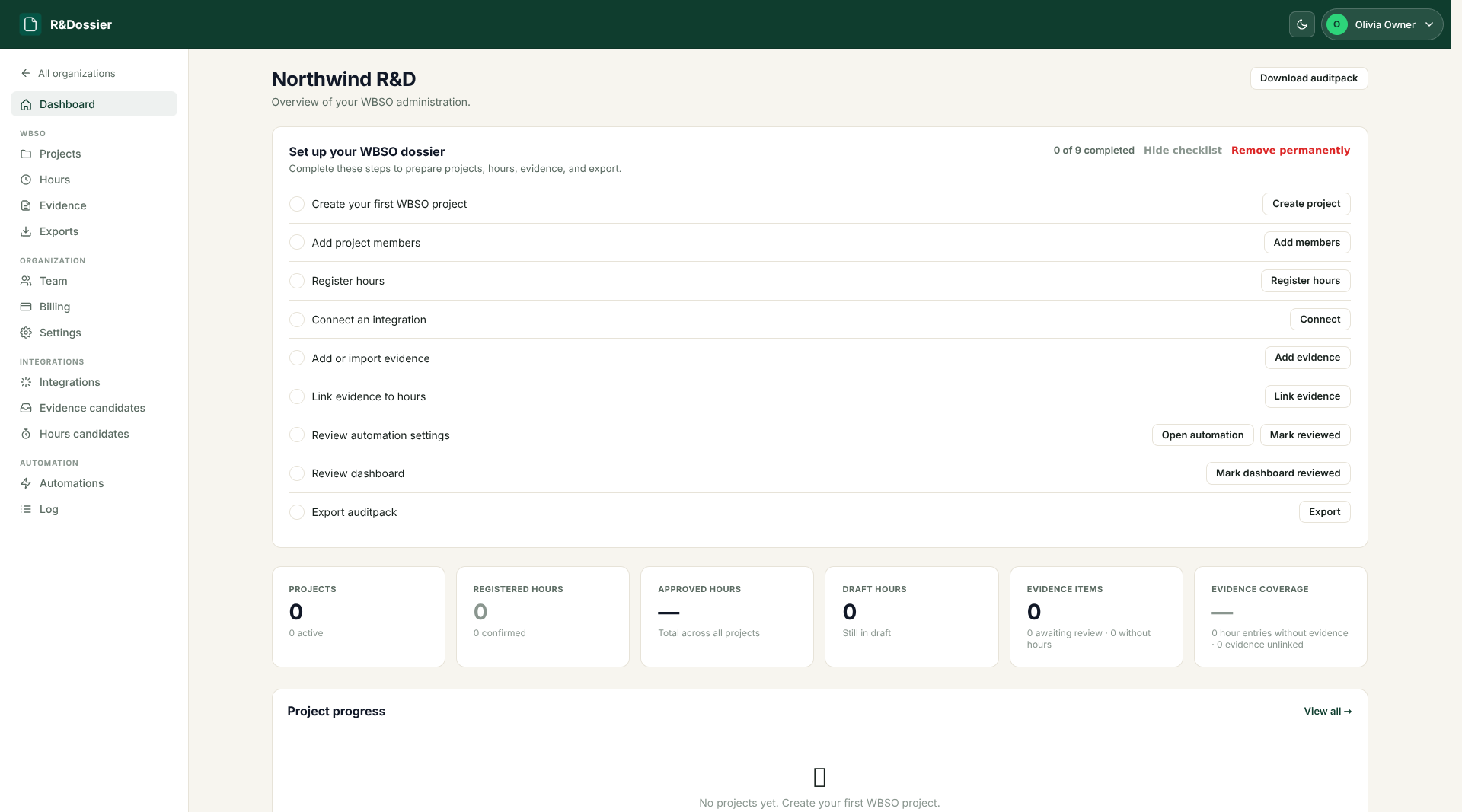
The first dashboard contains a setup checklist. It is more than a welcome tour: its steps follow the structure of a usable dossier, from the first project through connected work and the auditpack export.
2. Create the first WBSO project
Choose Projects and create the project that will anchor the imported work. Olivia creates AI Document Classifier with its 2026 period, expected and approved hours, technical description, uncertainty and planned development steps.
Use the project details from the WBSO application or internal project record. Avoid a description such as “build an AI feature.” A useful project record identifies the technical problem, why the solution was uncertain and how the team planned to investigate it. That context makes it easier to decide later whether a pull request, issue or time entry really belongs.
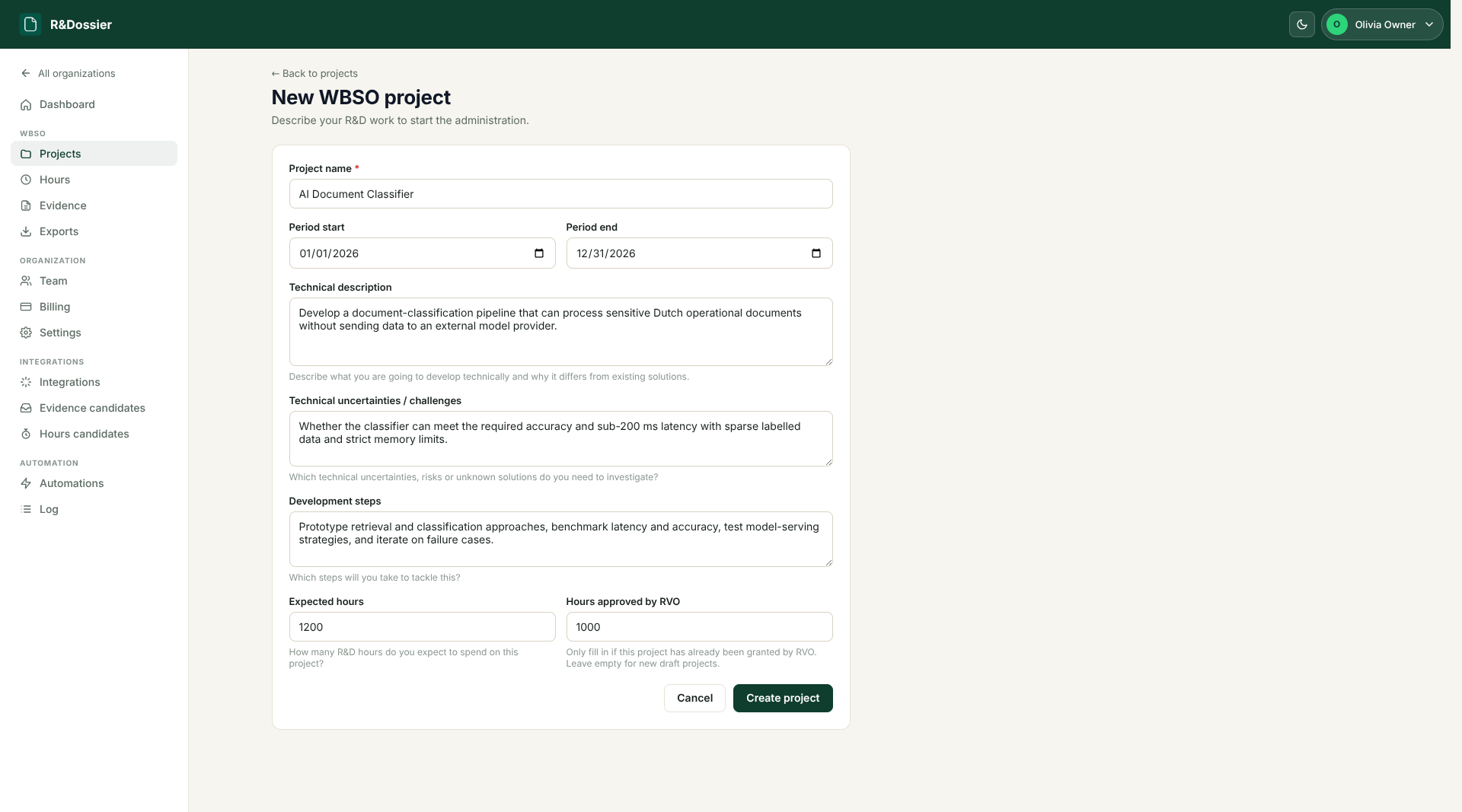
A new project begins as a draft. R&Dossier has a separate internal status workflow for submitting and approving projects; creating the record does not submit anything to RVO.
3. Add the people working on the project
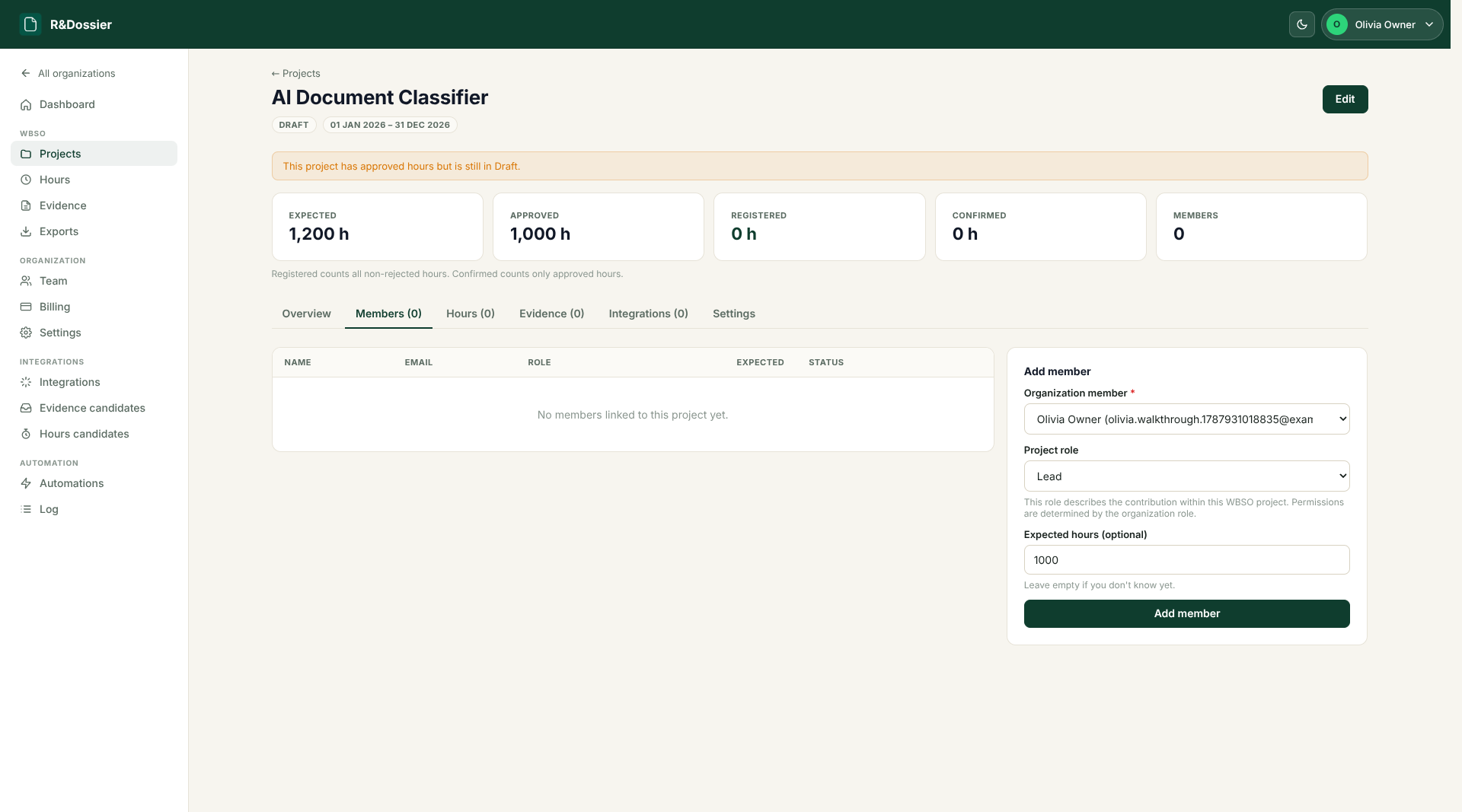
Open the project and select Members. Add the organization members who perform or review the R&D work, choose their project role and optionally record an expected hour allocation.
Organization membership and project membership are intentionally separate. The Team page controls who can enter the organization. The project Members tab controls who belongs to this R&D track. If a colleague is not available in the selector yet, invite them from Team first; after they accept, assign them here.
4. Connect the tools where the work already happens
Now the project has enough context for integration mappings. Open Integrations. R&Dossier separates integrations by what they contribute:
- GitHub supplies pull requests as evidence candidates.
- Linear supplies issues as evidence candidates.
- Azure DevOps supplies Azure Repos pull requests and Azure Boards work items as evidence candidates.
- TimeChimp supplies registered time as hours candidates.
Olivia connects GitHub for technical proof and TimeChimp for time registration. A team can connect only an evidence tool, only a time tracker, or several providers; the rest of the workflow remains the same.
5. Map sources and people before importing
Connecting an account proves that R&Dossier may talk to the provider. Mapping decides which part of that provider belongs to which WBSO project.
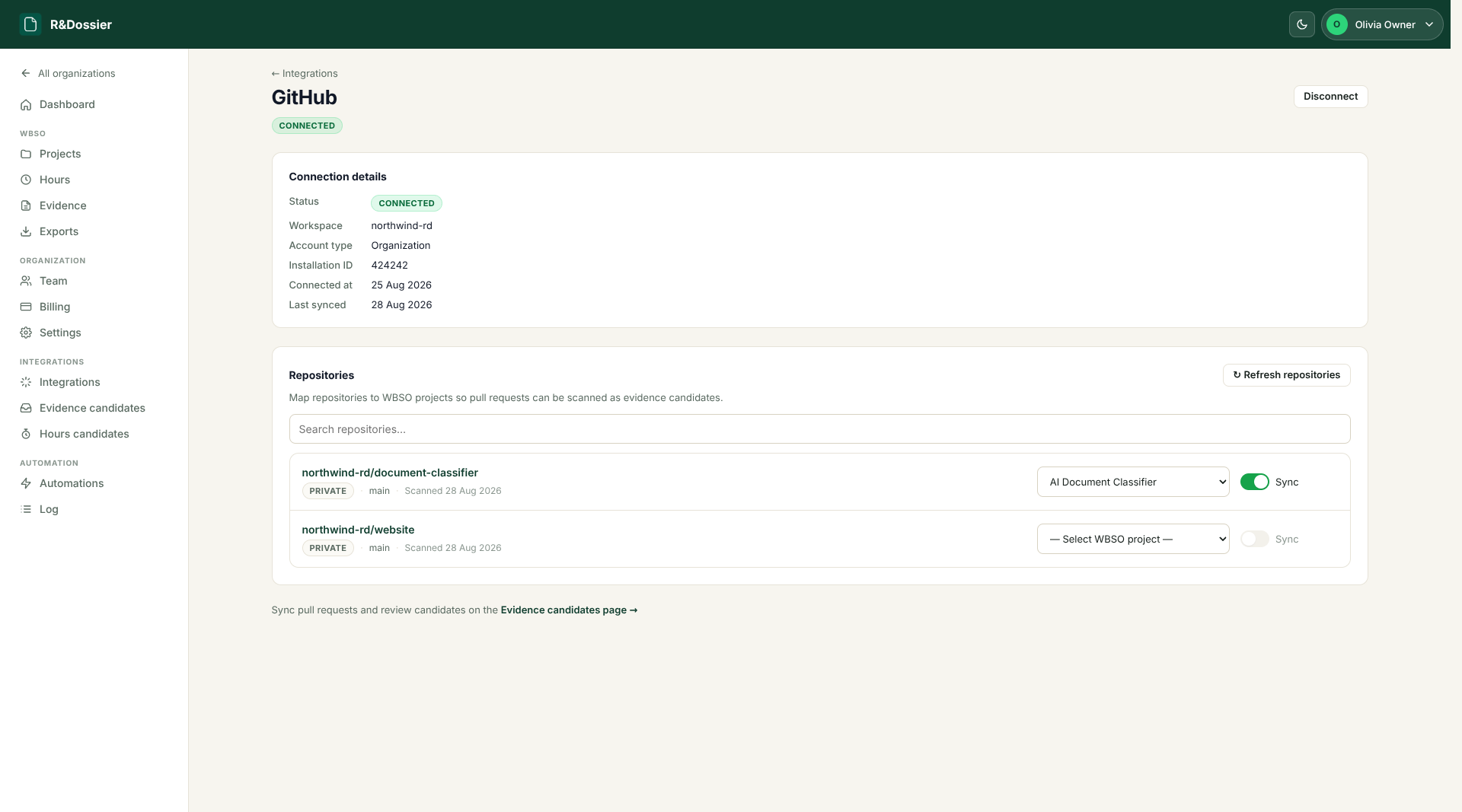
For GitHub, select the repositories that contain relevant R&D work and map each one to the matching R&Dossier project. Do not enable every repository by default. A focused mapping keeps routine product work, internal tooling and unrelated customer projects out of the candidate queue.
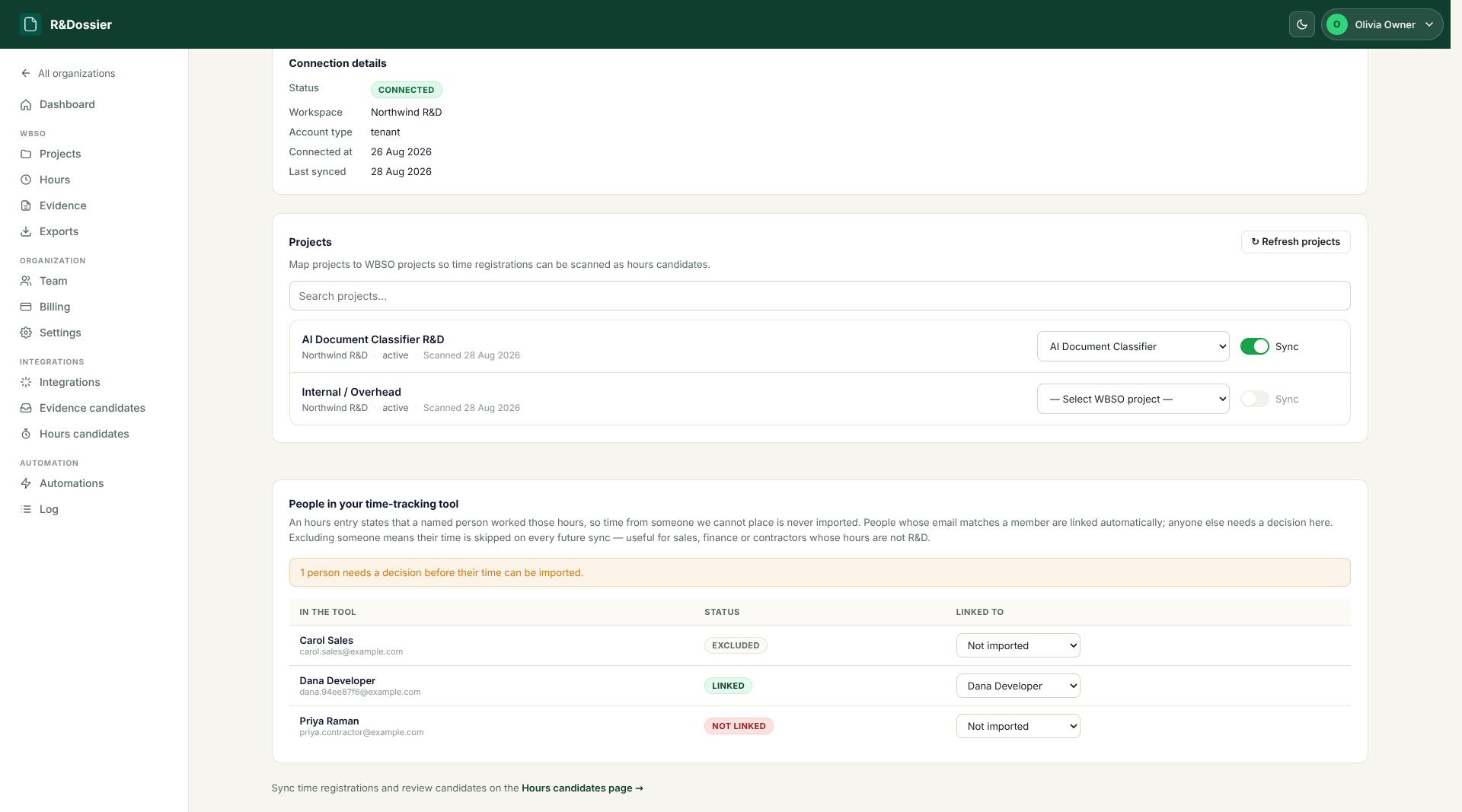
TimeChimp adds one extra safeguard because an hours entry states that a named person performed the work. Map the relevant TimeChimp project to the WBSO project, then review the people discovered by the first scan.
When an external email matches an organization member, R&Dossier can link that identity automatically. Resolve anyone else explicitly, or exclude people such as sales staff and contractors whose time must never become WBSO hours. An unresolved person blocks import instead of being attributed to a guess.
6. Let the first scan fill the candidate queues
A scheduled scan reads new activity from enabled sources. Scanning does not change the dossier. It writes what the provider reports into a candidate queue, where the project mapping, author, date and source remain visible.
Evidence candidates from development tools and hours candidates from TimeChimp remain separate. While a candidate is waiting, later scans can refresh it if a pull request title, issue description, duration or note changes. Importing freezes a reviewable snapshot in the dossier.
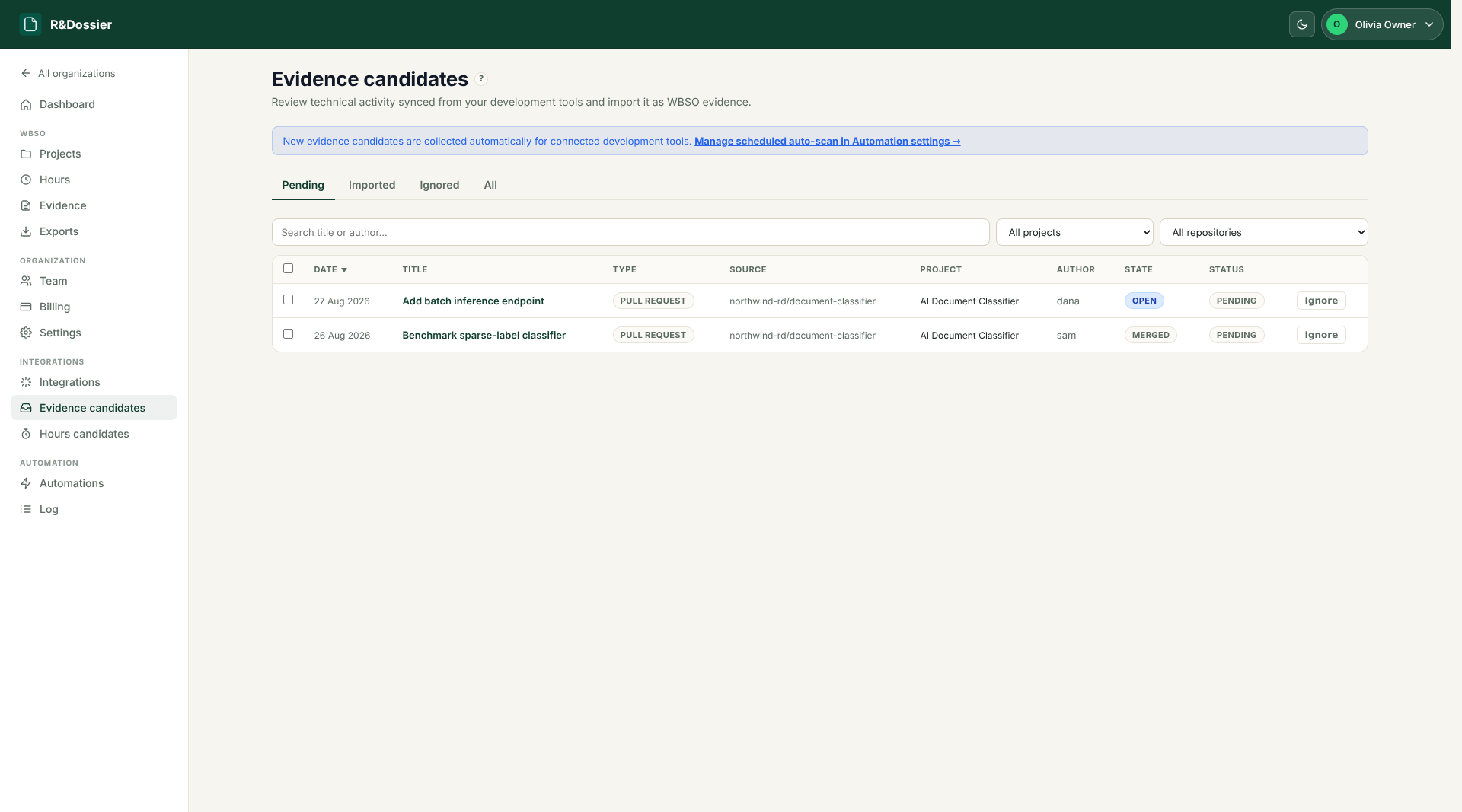
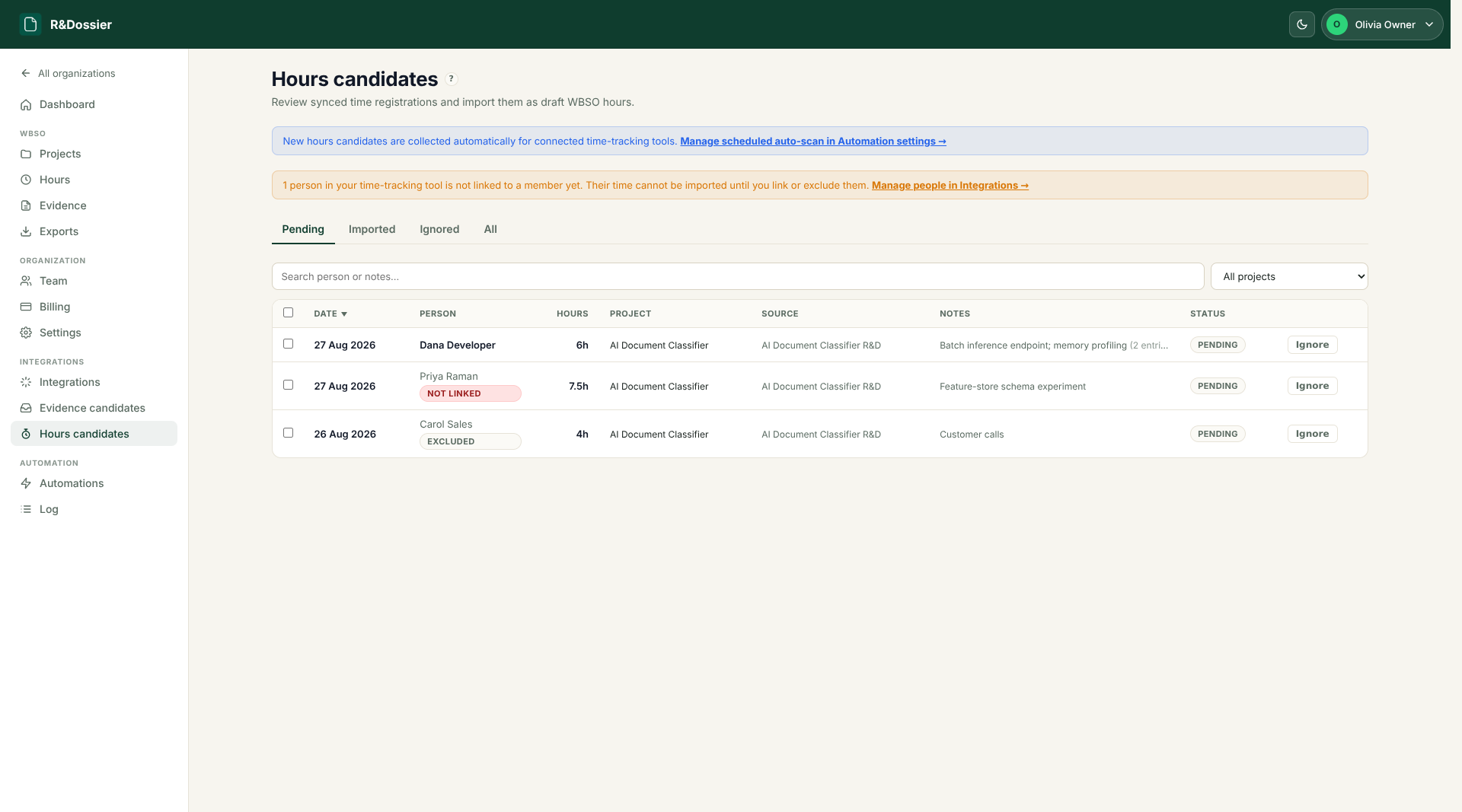
This boundary is useful even when you plan to automate import: it lets you verify the source and people mappings with real data first.
7. Choose what R&Dossier may automate
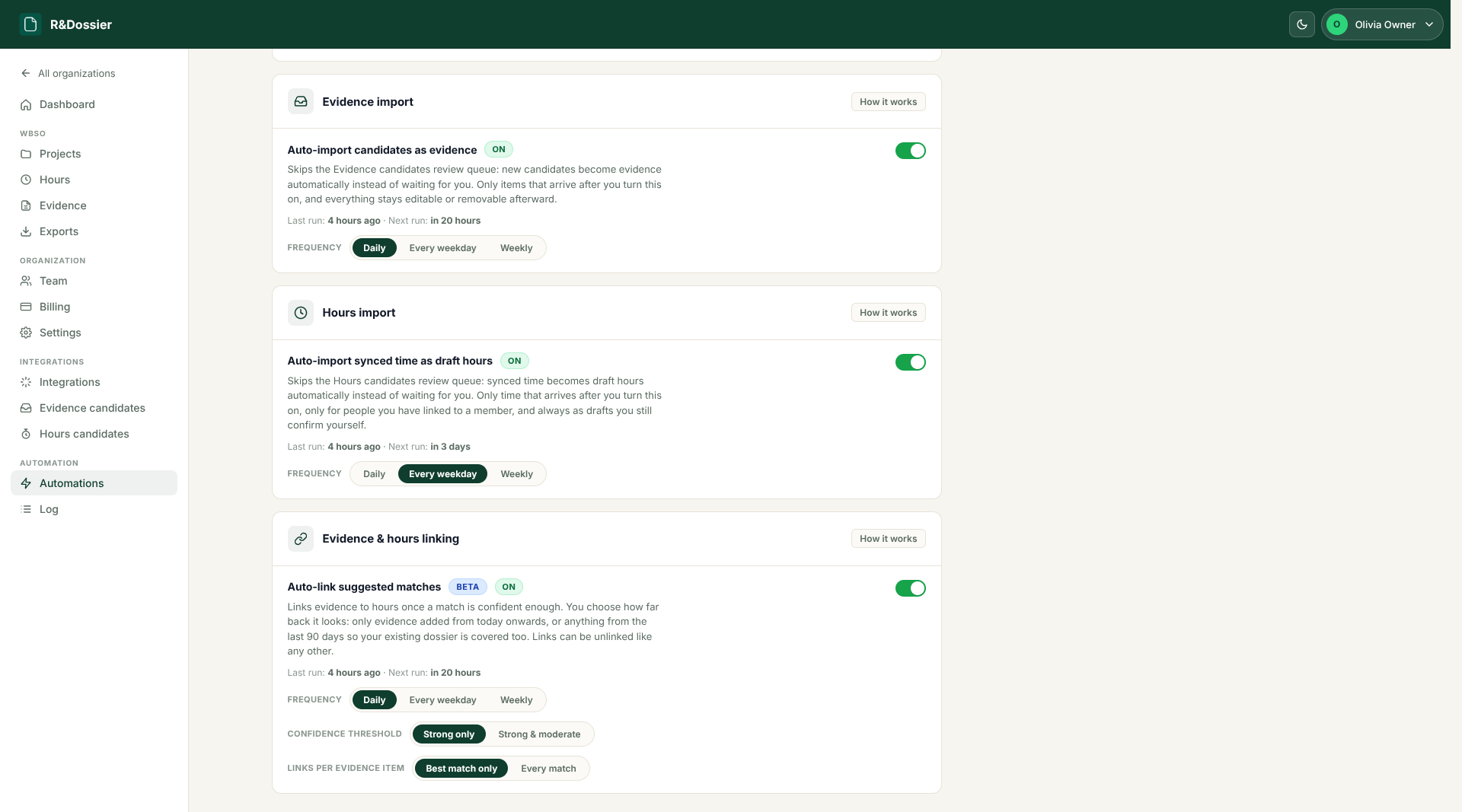
Open Automations after the first scan looks correct. Olivia configures four independent jobs:
- Scheduled auto-scan checks connected integrations for new activity.
- Evidence auto-import turns newly discovered evidence candidates into editable, unreviewed evidence.
- Hours auto-import turns newly discovered time candidates into draft hours.
- Auto-link connects evidence to sufficiently strong matching hours within the same project.
Each job has its own daily, weekday or weekly frequency. Everything is opt-in, can be switched off again and respects the project and organization access rules.
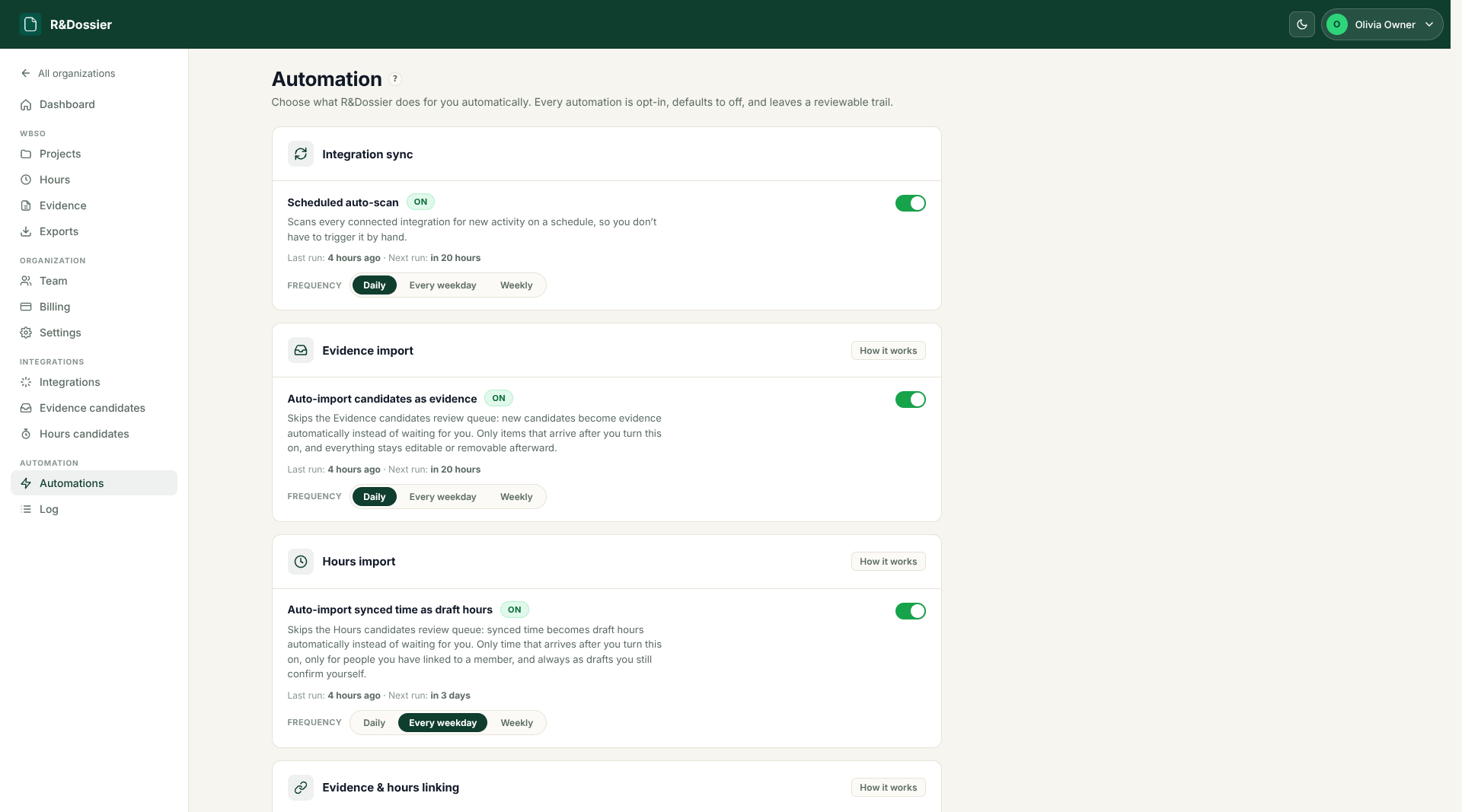
Enable import only after checking the candidate queues. Evidence and hours that were already waiting stay in the queue for manual review; the automation acts on candidates that arrive after it is enabled. That avoids silently sweeping an existing backlog into the dossier.
For auto-linking, choose whether it should consider only new evidence or also eligible evidence from the last 90 days. You also choose the confidence threshold and whether one or several accepted matches may be linked. Weak, date-only matches are never linked automatically.
8. Use the automation log as the audit trail
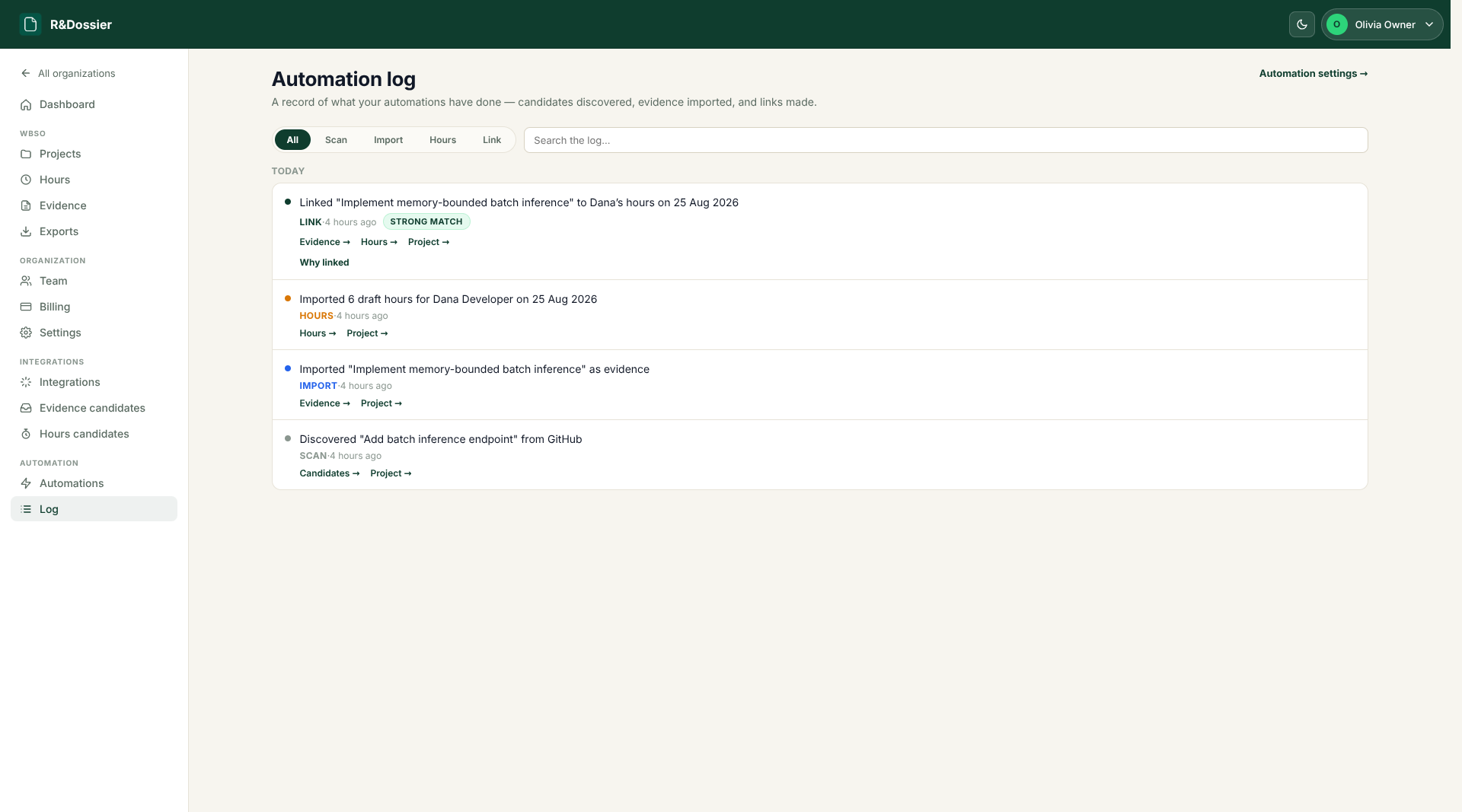
Once the scheduled jobs run, open the Automation log. It records candidates discovered, evidence imported, draft hours imported and evidence-hour links created.
Automatic links include an explanation: the shared keywords, date proximity, score components and threshold that the match cleared. The related project, evidence and hours remain one click away. This makes automation inspectable rather than a black box.
9. Review the decisions that remain human
Automation removes collection and typing, not responsibility. Imported time always arrives as draft hours. A person still checks the project, date, duration and work note before confirming it. Submitting or approving a project is also never automated.
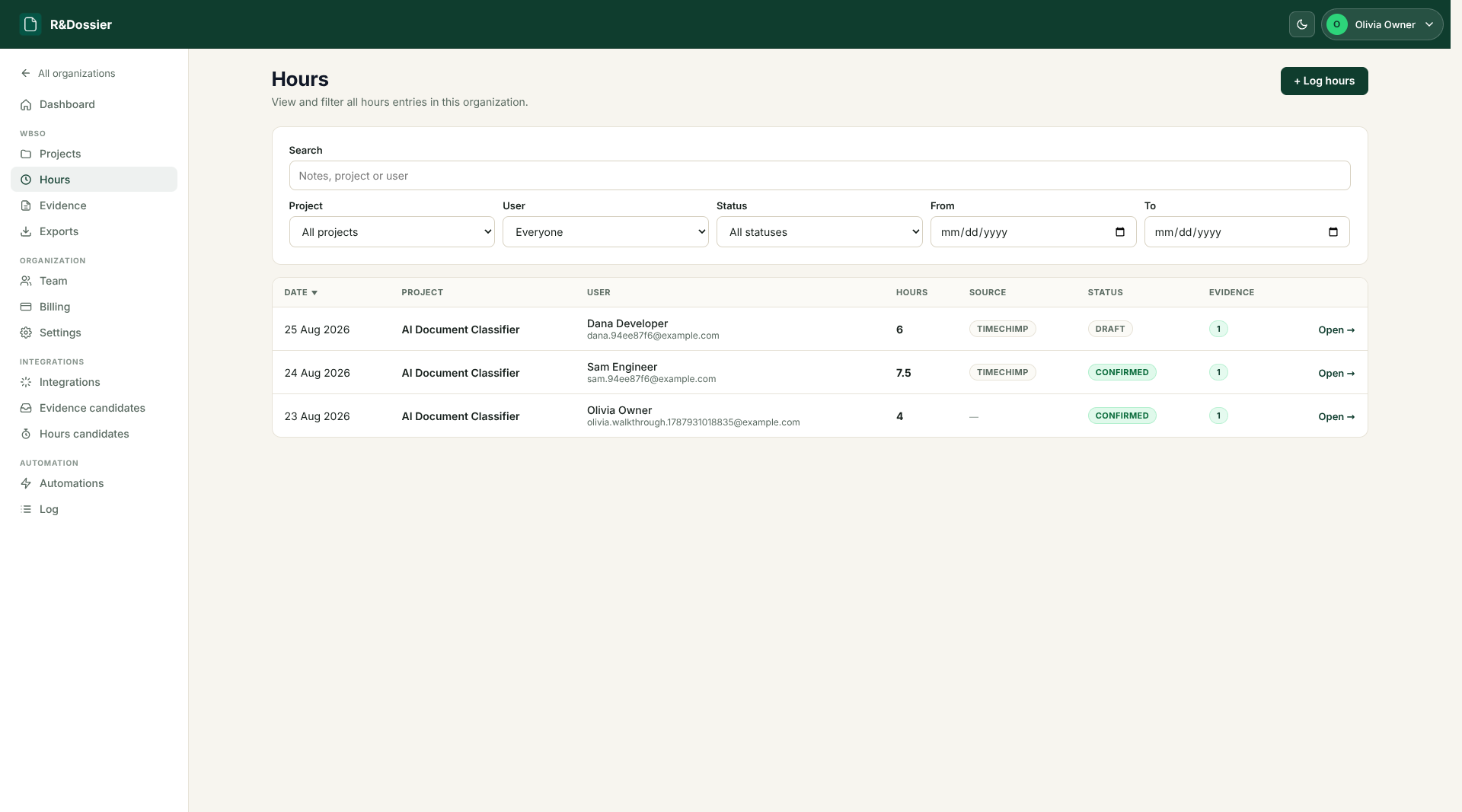
Imported evidence stays editable and visibly unreviewed until the team accepts it, flags it for attention or rejects it. Strong automatic links can be removed. Uncertain suggestions remain for a person to decide.
A good operating habit is a short monthly review: confirm eligible draft hours, review new evidence, resolve missing links and check whether the project still matches its approved technical scope.
10. Review dossier health
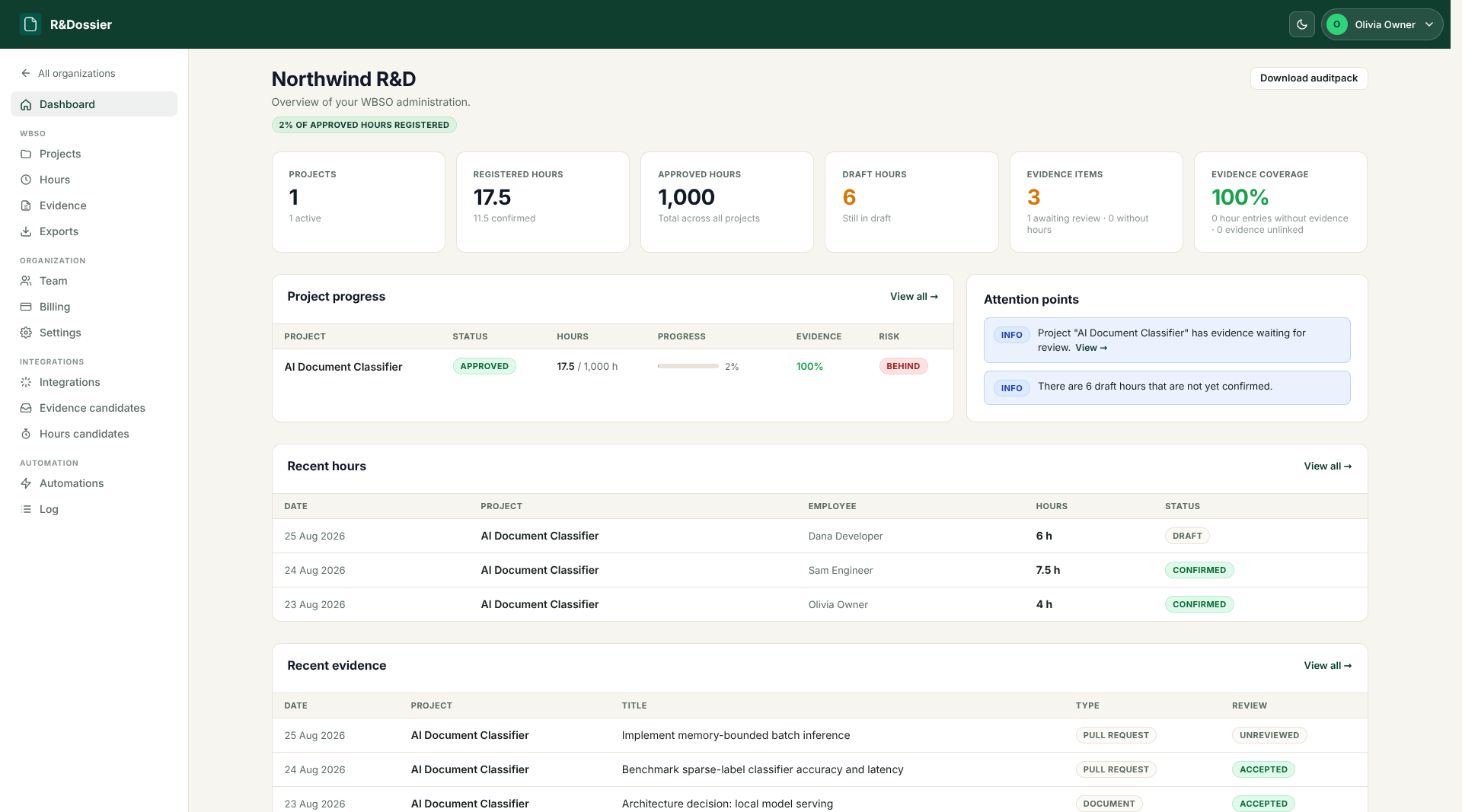
Return to the dashboard to see the records together. Project progress, registered and approved hours, draft-hour volume, evidence coverage and attention points show where the dossier needs work.
Treat the dashboard as a prompt for investigation, not a compliance score. A high evidence-coverage percentage does not prove that every link is meaningful, and an attention point is often useful precisely because it shows what still needs a person.
11. Export the auditpack
When the project is ready for internal review, advisor handover or control preparation, open Exports. Choose a year and optionally one project, then generate the Excel auditpack.
The workbook contains projects, members, detailed and monthly hours, evidence, evidence-hour links and review indicators. It helps another person inspect the dossier without rebuilding the relationship between systems by hand.
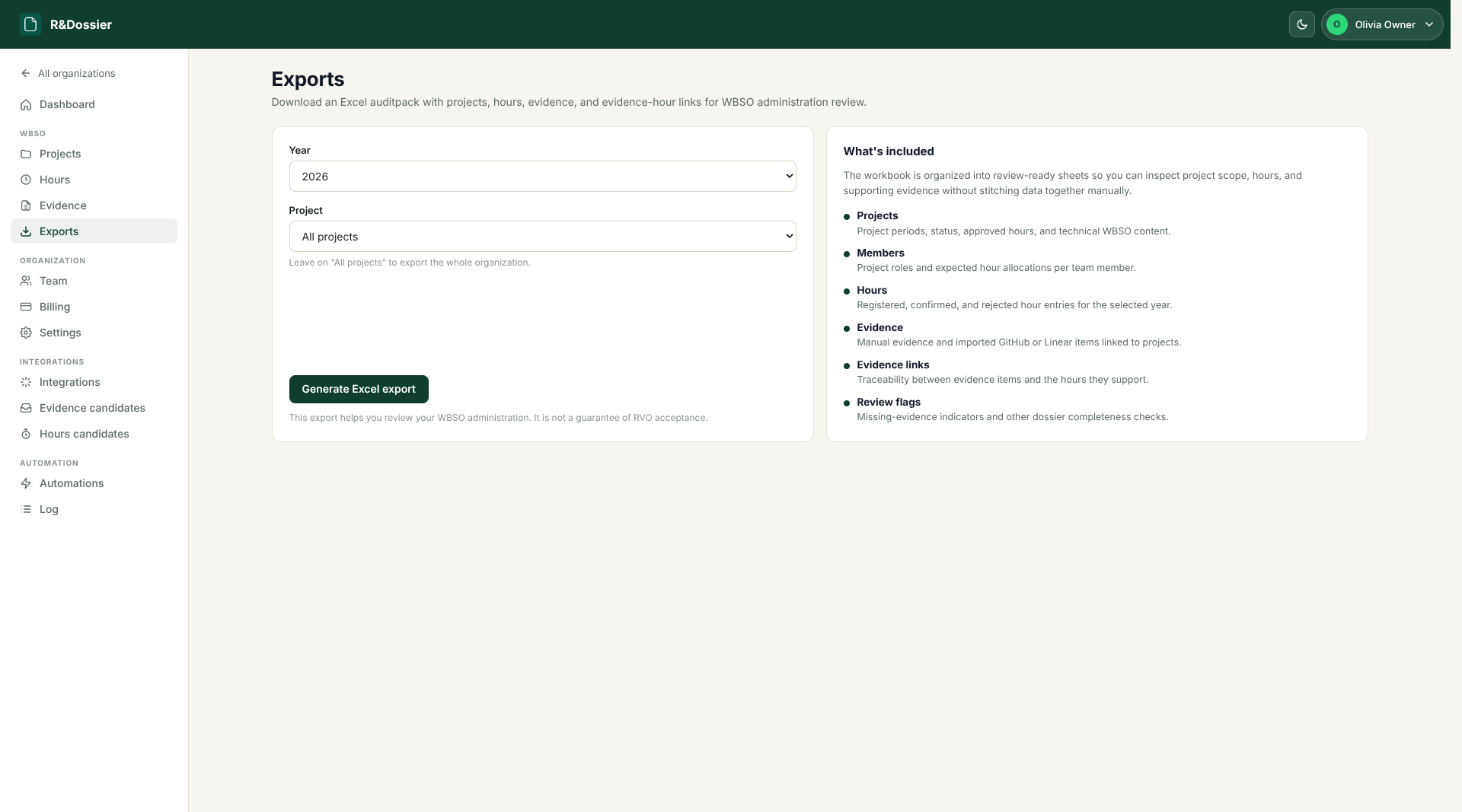
The export supports WBSO administration review. It does not submit a WBSO application or realization to RVO, and it does not guarantee that RVO will accept a claim. Review the workbook and the underlying records before relying on them.
Using R&Dossier without integrations
Integrations are the preferred way to keep recurring work flowing into R&Dossier, but they are not required. The same dossier can be maintained manually:
- Choose Hours, then Log hours to record a person, project, date, duration and technical work note.
- Choose Evidence, then Add evidence to record a commit, pull request, issue, experiment, document, note or other technical artifact.
- Open an evidence item to link it to one or more hour entries, using ranked suggestions where they help.
Manual and imported records live together in the same project, dashboard and auditpack. You can start manually, connect one provider later and automate only the parts that are repetitive for your team.
Your first automated dossier is now running
Olivia now has one WBSO project connected to the places where the team already works. New technical activity and time registrations arrive without another round of copying. R&Dossier can import and link the confident records, while the team still confirms hours, reviews evidence and resolves uncertainty.
That is the working rhythm to aim for: collect continuously, review deliberately and make the auditpack a byproduct of maintaining the dossier during the year.